Understanding Your Celestial Crown Account Dashboard for the First Time
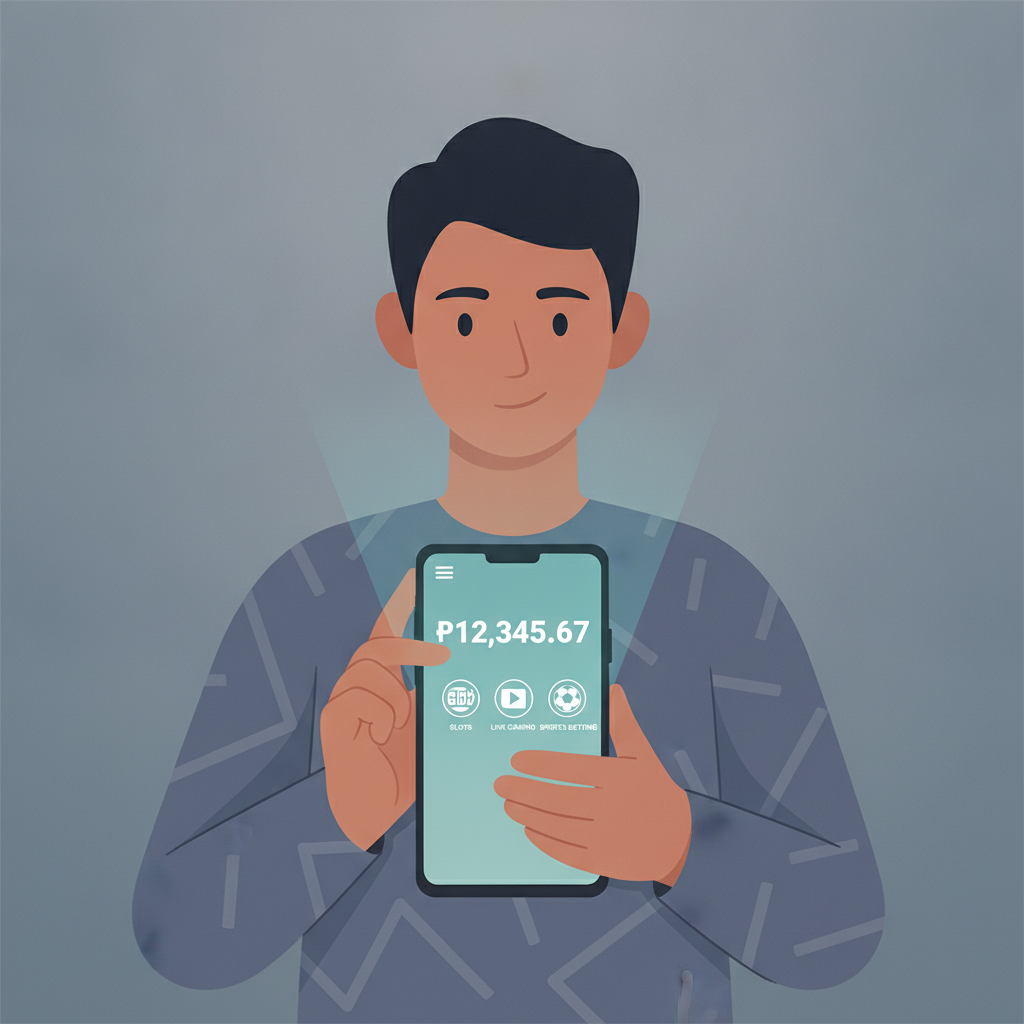
After you complete Celestial Crown register and log in for the first time, you land on the account dashboard. This is your control center for slots, live casino, sportsbook, deposits, and account settings. For most Filipino players on Android phones, the mobile interface is where you'll spend your time, so this guide walks through the dashboard layout, where to find your balance and bet history, and how to navigate between game sections.
This guide is for players 21 years old and above only. Always play within your budget and use responsible gambling tools if you need help managing your time or spending.
Logging In and Navigating the Main Dashboard on Mobile
Once you've registered, open the Celestial Crown site on your mobile browser. Tap the Celestial Crown login button, usually in the top-right corner or in a menu icon. Enter the mobile number or email and password you used during registration.
After logging in, the dashboard loads. On most mobile screens, you'll see:
- Your username or account icon at the top, which opens account settings when tapped
- Main balance display showing your peso wallet
- Navigation menu (often a hamburger icon or tab bar) to switch between casino, live dealer, sports, and bingo
- Promotional banners highlighting current offers (these may appear on the home screen, though detailed bonus terms are covered on separate sites)
- Quick links to deposit, withdraw, or view your bet history
The layout is designed for thumb scrolling. Swipe down to see featured games or upcoming sports events. The menu stays sticky at the top or bottom, so you can jump between sections without scrolling back.
If you're ever logged out for security, just tap Celestial Crown login again. Sessions usually stay active for a few hours unless you manually log out or clear your browser.
Where to Check Your Balance, Deposit History, and Active Bets
Your Peso Balance
Your main balance appears near the top of the dashboard, labeled "Balance" or "Main Wallet" in PHP. This is the total you can use across slots, live casino, sports, and bingo. If you transfer funds into a bonus wallet or game-provider sub-wallet, some platforms show separate balances, but Celestial Crown typically keeps one unified wallet for simplicity.
To refresh the balance after a deposit or after placing bets, pull down on the screen to reload, or tap the balance area—some dashboards have a small refresh icon next to the peso amount.
Deposit History
To see every deposit you've made:
- Tap your account icon or profile menu (top-right on most layouts)
- Select Transaction History, Deposit History, or Wallet
- Choose the Deposits tab
You'll see a list showing:
- Date and time
- Amount in PHP
- Payment method (GCash, Maya, bank transfer via InstaPay or PESONet)
- Status: successful, pending, or failed
This record helps you confirm that your PHP 100, 200, or 500 deposits went through. If a deposit is pending for more than a few minutes, check your e-wallet or bank app to ensure the payment completed, then contact Celestial Crown support if needed.
Active Bets and Bet History
For sports betting on PBA, NBA, or volleyball, and for tracking live-casino or bingo rounds:
- Open the menu and look for My Bets, Bet Slip, or History
- Toggle between Active Bets (unsettled wagers) and Settled Bets (completed results)
Active bets show:
- Event name (e.g., "Ginebra vs. TNT" for PBA, or "Ateneo vs. La Salle" for volleyball)
- Your stake in PHP
- Odds and potential payout
- Status: pending, in-play, or awaiting result
Settled bets show the final outcome—win or loss—and how much was added to (or deducted from) your balance.
For slots and jackpot games, most platforms log individual spins in a game-history panel inside each slot. To see aggregated slot play, go to Transaction History and filter by game type or date.
How to Switch Between Slots, Live Casino, and Sportsbook Sections
Celestial Crown offers four main areas: Slots, Live Casino, Sportsbook, and Bingo. Switching between them is fast on mobile.
Using the Navigation Menu
- Hamburger menu (three lines) or bottom tab bar: Tap to reveal options like Casino, Live Casino, Sports, Bingo
- Select the section you want; the page reloads with that category's games or betting markets
Slots Section
Tap Casino or Slots to browse:
- Hundreds of slot titles from providers like Pragmatic Play, PG Soft, and others
- Jackpot games, often grouped in a separate "Jackpots" tab
- Filters by volatility, theme, or provider (useful for finding Filipino-themed slots or low-stakes games)
When you open a slot, the game loads in full-screen. Swipe down or tap the back arrow to return to the lobby. Your balance updates live as you spin.
Live Casino Section
Tap Live Casino or Live Dealer to see:
- Live baccarat (punto banco) with Filipino or English-speaking dealers
- Live roulette, blackjack, and sicbo
- Game shows like Crazy Time or Monopoly Live, if available
Each table displays the minimum bet in PHP—often as low as PHP 10 or PHP 20—so you can choose one that fits your budget. Tap a table thumbnail to join; the video stream opens, and you place bets using on-screen chips.
Sportsbook Section
Tap Sports or Sportsbook to access betting markets for:
- PBA (Philippine Basketball Association)
- NBA (US pro basketball)
- Volleyball (UAAP, Premier Volleyball League)
- International soccer, esports, and more
You'll see a list of upcoming matches. Tap an event to expand the bet slip, pick your wager (moneyline, spread, over/under), enter your stake in PHP, and confirm. The bet moves to your Active Bets until the match ends.
Bingo
Tap Bingo to join scheduled games. The lobby shows next draw times, ticket prices in PHP, and prize pools. Buy tickets, then wait for the draw—daubing is often automatic on mobile.
Navigation tips: The dashboard remembers your last section, so if you close the browser mid-session and Celestial Crown login again, you may land back in Slots, Live Casino, or Sports depending on where you were.
Account Settings: Updating Contact Details and Password
To keep your account secure and ensure you receive withdrawal confirmations or support messages, review your contact details and password regularly.
Accessing Account Settings
- Tap your username, account icon, or profile picture at the top of the dashboard
- Select Account Settings, My Profile, or Personal Information
Contact Details
You'll see fields for:
- Mobile number (used for SMS verification and GCash/Maya deposits)
- Email address (for password resets and promo notifications)
- Full name and birthdate (locked after initial verification to prevent fraud)
If you change your mobile number or email, Celestial Crown may send a verification code to the new contact. Enter the code to confirm. Keeping these details current helps smooth out GCash or Maya deposit flows, since those e-wallets are often linked to your registered phone number.
Changing Your Password
- In Account Settings, tap Change Password or Security
- Enter your current password, then your new password twice
- Confirm
Use a strong password mixing letters, numbers, and symbols. Avoid reusing passwords from other sites. If you forget your password, the Celestial Crown login screen has a "Forgot Password?" link that sends a reset code to your registered email or mobile.
Two-Factor Authentication
Some dashboards offer optional two-factor authentication (2FA), sending a one-time code to your phone each time you log in. Enabling 2FA adds extra security, especially if you're logging in from different devices or public Wi-Fi.
21+ and Responsible Gambling Tools in Your Account
Celestial Crown requires all players to be 21 years of age or older. During registration, you confirm your birthdate, and ID verification may be requested before your first withdrawal.
Responsible Gambling Features
Inside Account Settings or a dedicated Responsible Gambling menu, you'll find tools to help manage your play:
- Deposit Limits
Set a daily, weekly, or monthly cap on how much you can add to your account. Once you hit the limit, further deposits are blocked until the period resets. This is useful if you want to stick to a PHP 500-per-week budget. - Loss Limits
Define the maximum you're willing to lose in a session, day, or week. When the limit is reached, you can still log in and view your account, but wagering is paused. - Session Time Reminders
Configure pop-up alerts after a certain number of minutes (e.g., every 30 or 60 minutes). The reminder prompts you to take a break or log out. - Self-Exclusion
If you need a longer break, request a self-exclusion period—commonly 24 hours, one week, one month, or six months. During exclusion, you cannot log in or place bets. Contact Celestial Crown support to initiate self-exclusion. - Reality Checks
Some platforms display your session duration and net wins/losses on-screen. Use this data to stay aware of how long you've been playing and whether you're up or down.
Where to Get Help
If gambling starts to feel less like entertainment and more like a problem, reach out:
- National Council on Problem Gambling (Philippines) or similar local helplines
- Celestial Crown customer support can point you to self-exclusion forms and external resources
Remember: online casino games, sports betting, and bingo are for entertainment. Never chase losses, and only wager money you can afford to lose.
Wrapping Up
Your Celestial Crown account dashboard is the hub for deposits, game play, bet tracking, and security settings. After your first Celestial Crown login, take a few minutes to explore the balance display, deposit history, and navigation menu. Bookmark the My Bets section if you enjoy PBA or NBA betting, and review Account Settings to confirm your mobile number, email, and password are up to date.
By understanding where everything lives on the dashboard—especially on a small mobile screen—you'll move smoothly between slots, live dealer tables, and sportsbook markets. And with responsible gambling tools at your fingertips, you can set limits that keep your play fun and within budget.
Play responsibly. Celestial Crown is for players 21 years old and above only.